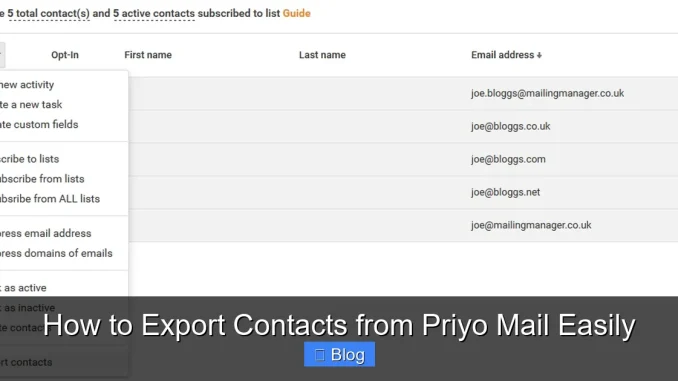
Exporting contacts from Priyo Mail is simple and essential for managing your communication data. This guide walks you through the entire process, ensuring you can back up or transfer your contacts without hassle.
Key Takeaways
- Access your Priyo Mail account securely: Always log in from a trusted device and ensure your password is up to date before starting the export process.
- Use the built-in export feature: Priyo Mail offers a native option to export contacts in CSV format, making it compatible with most email platforms.
- Choose the right file format: CSV is recommended for broad compatibility with Gmail, Outlook, and other email services.
- Verify exported data: Always open the downloaded file to confirm all contacts were included and formatted correctly.
- Keep backups regularly: Schedule periodic exports to avoid losing important contact information due to accidental deletion or account issues.
- Troubleshoot common issues: If the export fails, check your internet connection, browser compatibility, or try a different device.
- Import contacts elsewhere easily: Once exported, you can upload your CSV file to other email providers or CRM tools seamlessly.
📑 Table of Contents
- Why Exporting Contacts from Priyo Mail Matters
- Understanding Priyo Mail’s Contact Management System
- Step-by-Step Guide to Export Contacts from Priyo Mail
- Best Practices for Managing Exported Contacts
- Troubleshooting Common Export Issues
- How to Import Your Exported Contacts Elsewhere
- Final Thoughts: Take Control of Your Contact Data
Why Exporting Contacts from Priyo Mail Matters
Imagine losing access to all your saved email addresses—clients, friends, family, or business partners—in an instant. That’s a scary thought, right? Whether you’re switching email providers, backing up your data, or simply organizing your digital life, knowing how to export contacts from Priyo Mail is a crucial skill. Priyo Mail, a popular email service in Bangladesh and among Bengali-speaking users, offers a user-friendly interface but doesn’t always make advanced features like contact export obvious to new users.
Exporting your contacts isn’t just about safety—it’s about control. When you have a copy of your contact list, you can import it into Gmail, Outlook, or any other email platform without manually re-adding each person. This saves hours of work and reduces the risk of missing someone important. Plus, having a backup means you’re prepared for the unexpected: account lockouts, service changes, or even accidental deletions. In today’s digital world, data ownership is power, and exporting your contacts puts that power in your hands.
Understanding Priyo Mail’s Contact Management System
Priyo Mail organizes your contacts in a centralized address book, accessible directly from your inbox. Every time you send an email, the service automatically saves the recipient’s address (unless you disable this feature). Over time, this builds a comprehensive list of people you communicate with regularly. However, unlike some global email platforms, Priyo Mail doesn’t prominently advertise its export tools, which can leave users confused about how to retrieve their data.
Visual guide about How to Export Contacts from Priyo Mail Easily
Image source: saleshandy.com
Where Are Your Contacts Stored?
Your contacts live in the “Address Book” section of your Priyo Mail account. This is where all saved names, email addresses, and sometimes additional details like phone numbers or notes are stored. To access it, log in to your account and look for a tab or link labeled “Contacts” or “Address Book”—usually found in the top menu or sidebar. Once inside, you’ll see a list of all your saved contacts, sorted alphabetically or by most recent interaction.
How Priyo Mail Handles Contact Data
Priyo Mail treats contact data as private and secure. It doesn’t share your list with third parties, and all information is stored on encrypted servers. However, the platform doesn’t offer automatic cloud syncing with external services like Google Contacts. This means if you want to use your Priyo Mail contacts elsewhere, you’ll need to manually export them. The good news? The process is straightforward once you know where to look.
Step-by-Step Guide to Export Contacts from Priyo Mail
Now that you understand why exporting matters and how Priyo Mail stores your data, let’s dive into the actual process. Follow these steps carefully to ensure a smooth and successful export.

Visual guide about How to Export Contacts from Priyo Mail Easily
Image source: i.ytimg.com
Step 1: Log In to Your Priyo Mail Account
Open your preferred web browser and go to the official Priyo Mail website. Enter your username and password to log in. Make sure you’re on the correct site—look for “https://” and a padlock icon in the address bar to confirm it’s secure. If you’ve enabled two-factor authentication, complete that step as well.
Step 2: Navigate to the Address Book
Once logged in, look for the “Address Book” or “Contacts” option. This is typically located in the top navigation bar or in a dropdown menu under your account name. Click on it to open your contact list. You should now see a grid or list view of all your saved contacts.
Step 3: Select All Contacts (Optional)
If you want to export every contact, look for a “Select All” checkbox at the top of the list. Clicking this will highlight all entries. Alternatively, you can manually select specific contacts by checking individual boxes next to each name. This is useful if you only need to export a subset of your list—like work colleagues or family members.
Step 4: Initiate the Export Process
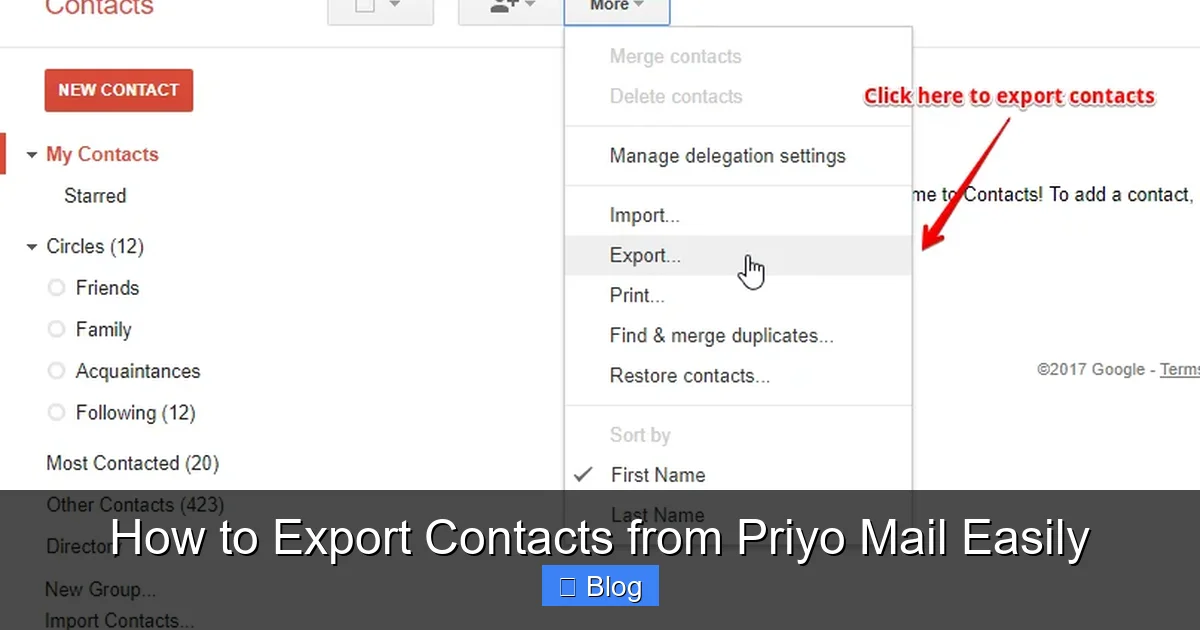
With your contacts selected, look for an “Export” or “Download” button. This is usually found near the top or bottom of the contact list. Click it, and a dialog box should appear asking you to choose a file format. Select CSV (Comma Separated Values)—this is the most widely supported format and works with nearly all email services.
Step 5: Download and Save the File
After selecting CSV, click “Export” or “Download.” Your browser will begin downloading a file named something like “priyo_contacts.csv” or “address_book.csv.” Save it to a secure location on your computer—like your Documents folder or a dedicated backup drive. Avoid saving it to temporary folders that might get cleared automatically.
Step 6: Verify the Exported File
Once the download is complete, open the CSV file using a program like Microsoft Excel, Google Sheets, or any text editor. Check that all your contacts are present and that the data is correctly formatted—names in one column, emails in another, etc. If something looks off, try exporting again or contact Priyo Mail support for assistance.
Best Practices for Managing Exported Contacts
Exporting your contacts is just the first step. To get the most out of your data, follow these best practices for storage, organization, and future use.
Visual guide about How to Export Contacts from Priyo Mail Easily
Image source: mobiletrans.wondershare.com
Store Your Backup Securely
Never leave your contact file sitting on your desktop or in a public folder. Instead, save it in a password-protected folder or encrypted drive. Consider using cloud storage services like Google Drive or Dropbox with two-factor authentication enabled. This ensures your data is safe even if your device is lost or stolen.
Label and Date Your Files
When saving your export, rename the file to include the date—for example, “Priyo_Contacts_2024-06-15.csv.” This makes it easy to identify the most recent backup and track changes over time. If you export monthly, you’ll always know which version is current.
Update Your Backup Regularly
Don’t treat contact export as a one-time task. Set a reminder to export your contacts every few months, especially after adding new important contacts. This keeps your backup current and reduces the risk of losing recent additions.
Test Importing to Another Platform
To ensure your export works, try importing the CSV file into another email service like Gmail. Go to Google Contacts, click “Import,” and select your file. If all contacts appear correctly, you know your export process is reliable. This also helps you prepare for a future migration.
Troubleshooting Common Export Issues
Even with clear instructions, things don’t always go smoothly. Here are some common problems users face when trying to export contacts from Priyo Mail—and how to fix them.
“Export Button Is Missing or Grayed Out”
If you can’t find the export option or it’s disabled, you might not have selected any contacts. Make sure at least one contact is checked before looking for the export button. Also, try refreshing the page or logging out and back in. Sometimes a simple reload resolves interface glitches.
“Download Doesn’t Start”
If clicking export does nothing, your browser might be blocking pop-ups or downloads. Check the address bar for a blocked download icon and allow it. Alternatively, try using a different browser—Chrome, Firefox, or Edge—to see if the issue is browser-specific.
“File Is Corrupted or Incomplete”
If the CSV file won’t open or shows missing data, the export might have been interrupted. Ensure you have a stable internet connection during the process. If the problem persists, export in smaller batches—select 50 contacts at a time—to isolate any problematic entries.
“CSV Format Isn’t Recognized by Other Services”
Some platforms expect specific column headers like “First Name,” “Email,” etc. If your import fails, open the CSV file and check the header row. You may need to rename columns to match the target service’s requirements. For example, change “E-mail” to “Email” for Gmail compatibility.
How to Import Your Exported Contacts Elsewhere
Once you’ve successfully exported your contacts from Priyo Mail, you might want to use them in another email platform. Here’s how to import your CSV file into popular services.
Importing to Gmail
Go to Google Contacts, sign in, and click the “Import” button on the left sidebar. Upload your CSV file and follow the prompts to map columns correctly. Google will automatically match most fields, but review them before finalizing.
Importing to Outlook
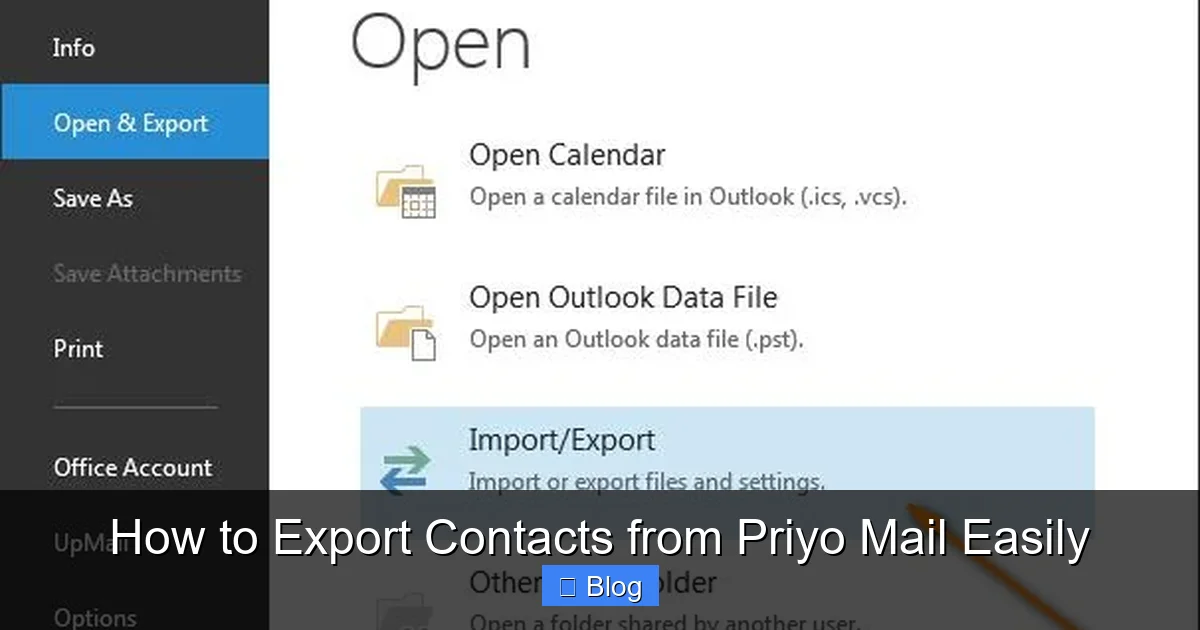
In Outlook, go to “File” > “Open & Export” > “Import/Export” > “Import from another program or file” > “Comma Separated Values.” Browse for your CSV file, choose how to handle duplicates, and complete the import.
Importing to Apple Mail
Open the Contacts app on your Mac, go to “File” > “Import,” and select your CSV file. The app will guide you through the process, allowing you to review and adjust data before saving.
Final Thoughts: Take Control of Your Contact Data
Exporting contacts from Priyo Mail might seem like a small task, but it’s a powerful step toward digital independence. By creating regular backups, you protect yourself from data loss and make transitions between platforms seamless. Whether you’re preparing for a switch to Gmail, organizing your professional network, or simply staying prepared, this skill is invaluable.
Remember, technology should work for you—not the other way around. Don’t wait until it’s too late to back up your contacts. Take five minutes today to export your list and store it safely. Your future self will thank you.
Frequently Asked Questions
Can I export contacts from Priyo Mail to my phone?
Yes, after exporting your contacts as a CSV file, you can import them into your phone’s contact app. On Android, use the Google Contacts app; on iPhone, use the built-in Contacts app. Both support CSV imports via cloud sync or file upload.
What if I can’t find the export option in Priyo Mail?
The export feature may be located under “Tools” or “Settings” within the Address Book. If you still can’t find it, try updating your browser or accessing Priyo Mail from a desktop computer, as mobile views sometimes hide advanced options.
Is it safe to export my contacts?
Yes, exporting your own contact data is completely safe. Just ensure you save the file to a secure location and avoid sharing it publicly. Priyo Mail does not track or store your exported files after download.
Can I export only specific groups of contacts?
Priyo Mail doesn’t support contact groups or labels, so you’ll need to manually select the contacts you want to export. Use the checkboxes next to each name to choose individuals or ranges before exporting.
How often should I export my contacts?
It’s wise to export your contacts every 3–6 months, or whenever you add several new important contacts. Regular backups ensure you never lose critical information due to account issues or accidental deletions.
What file format should I choose for maximum compatibility?
CSV (Comma Separated Values) is the best choice. It’s supported by Gmail, Outlook, Apple Mail, and most CRM tools. Avoid proprietary formats unless you’re certain your target platform accepts them.
Leave a Reply