Setting up Priyo Mail doesn’t have to be confusing. This guide walks you through every step of the email settings process, from IMAP and SMTP configurations to troubleshooting common issues. Whether you’re using a phone, laptop, or desktop, you’ll get your Priyo Mail working in minutes.
Key Takeaways
- Easy Setup Process: Priyo Mail settings can be configured quickly using standard IMAP and SMTP protocols.
- Cross-Device Compatibility: Once configured, your Priyo Mail works seamlessly on smartphones, tablets, and computers.
- Secure Connection Options: Use SSL/TLS encryption to keep your email communications safe and private.
- Port Numbers Matter: Correct port settings (like 993 for IMAP and 465 for SMTP) are essential for successful email sync.
- Password & Authentication: Always use your full email address and correct password when setting up accounts.
- Troubleshooting Tips: Common issues like login failures or sync errors can often be fixed with simple steps.
- Support Resources: Priyo Mail offers customer support and online help if you run into problems during setup.
📑 Table of Contents
- Introduction to Priyo Mail and Why Proper Settings Matter
- Understanding Email Protocols: IMAP vs. POP3
- Priyo Mail IMAP and SMTP Settings (The Complete List)
- How to Set Up Priyo Mail on Popular Devices and Apps
- Troubleshooting Common Priyo Mail Setup Issues
- Tips for a Smooth Priyo Mail Experience
- Conclusion: Enjoy Hassle-Free Email with Priyo Mail
Introduction to Priyo Mail and Why Proper Settings Matter
If you’ve recently signed up for Priyo Mail—or you’re thinking about switching from another email provider—you’re probably wondering how to get it set up on your devices. You’re not alone. Many users find email configuration a bit tricky, especially when dealing with server settings, passwords, and connection types. But don’t worry: with the right guidance, setting up Priyo Mail is straightforward and fast.
Priyo Mail is a reliable, user-friendly email service popular in Bangladesh and among Bengali-speaking communities worldwide. It offers free email accounts with decent storage, spam protection, and a clean interface. But to get the most out of it—like accessing your emails on your phone, syncing across devices, or using it with email clients like Outlook or Thunderbird—you need to configure the correct email settings. That’s where this guide comes in.
Understanding Email Protocols: IMAP vs. POP3
Before diving into the actual settings, it’s important to understand the two main ways email clients connect to your mailbox: IMAP and POP3. Choosing the right one affects how your emails are stored and synced.
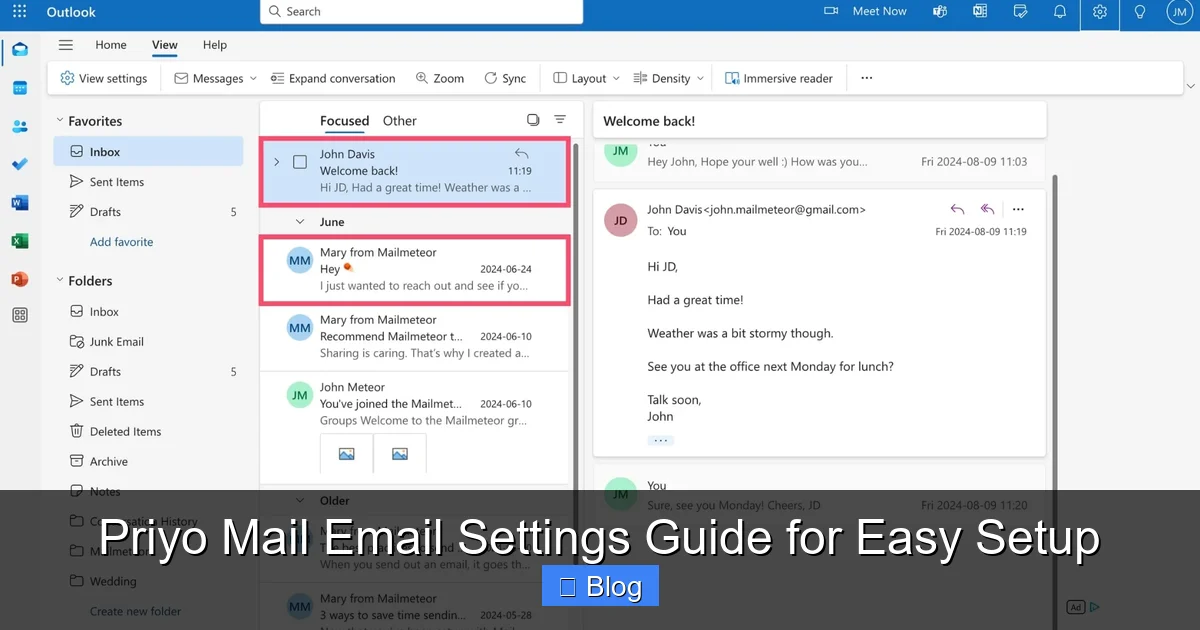
Visual guide about Priyo Mail Email Settings Guide for Easy Setup
Image source: assets.mailmeteor.com
What Is IMAP?
IMAP (Internet Message Access Protocol) keeps your emails on the server. When you read, delete, or organize emails on one device, those changes appear on all your devices. This is ideal if you use multiple devices—like a phone, tablet, and laptop—to check your email.
What Is POP3?
POP3 (Post Office Protocol) downloads emails to your device and usually deletes them from the server. This saves server space but means your emails exist only on the device where they were downloaded. It’s less ideal for multi-device users.
For most Priyo Mail users, we recommend IMAP. It ensures your emails stay in sync across all devices and reduces the risk of losing messages if a device is lost or damaged.
Priyo Mail IMAP and SMTP Settings (The Complete List)
Here are the official Priyo Mail email settings you’ll need to configure your account on any device or email client. These settings work for smartphones, computers, and third-party apps.
Incoming Mail Server (IMAP)
- Server name: imap.priyomail.com
- Port: 993
- Encryption: SSL/TLS
- Username: Your full Priyo Mail address (e.g., [email protected])
- Password: Your account password
Outgoing Mail Server (SMTP)
- Server name: smtp.priyomail.com
- Port: 465
- Encryption: SSL/TLS
- Username: Your full Priyo Mail address
- Password: Your account password
Note: Some older devices or email clients may use port 587 with STARTTLS encryption for SMTP. If port 465 doesn’t work, try 587 with TLS enabled.
Additional Notes
- Always use your full email address as the username—not just the part before the @ symbol.
- Make sure your password is correct and hasn’t expired. If you’ve recently changed it, update it in all your devices.
- Enable “Require authentication” for the outgoing server (SMTP). This prevents spam and ensures your emails are sent properly.
How to Set Up Priyo Mail on Popular Devices and Apps
Now that you have the settings, let’s walk through how to apply them on different platforms. Whether you’re using an iPhone, Android phone, Windows PC, or Mac, the process is similar—just the interface looks different.
Setting Up Priyo Mail on iPhone or iPad
- Open Settings > Mail > Accounts > Add Account.
- Tap Other > Add Mail Account.
- Enter your name, full Priyo Mail address, password, and a description (e.g., “Priyo Mail”).
- Tap Next. The device will try to auto-configure, but it may fail.
- When prompted, enter the IMAP and SMTP settings manually:
- Incoming Mail Server: imap.priyomail.com, port 993, SSL
- Outgoing Mail Server: smtp.priyomail.com, port 465, SSL
- Tap Next and wait for verification. If successful, tap Save.
Setting Up Priyo Mail on Android
- Open the Gmail app or your preferred email app (like Samsung Email or Outlook).
- Tap Add Account > Other.
- Enter your full Priyo Mail address and password.
- Choose IMAP as the account type.
- Enter the incoming server settings:
- IMAP server: imap.priyomail.com
- Port: 993
- Security type: SSL/TLS
- Enter the outgoing server settings:
- SMTP server: smtp.priyomail.com
- Port: 465
- Security type: SSL/TLS
- Require sign-in: Yes
- Tap Next and follow the prompts to complete setup.
Setting Up Priyo Mail on Windows (Outlook or Mail App)
- Open Outlook or the Mail app from the Start menu.
- Go to File > Add Account (in Outlook) or Accounts > Add Account (in Mail app).
- Choose Manual setup or Advanced options.
- Select IMAP/SMTP.
- Fill in your name, email address, and password.
- Enter the server details:
- Incoming mail: imap.priyomail.com, port 993, SSL
- Outgoing mail: smtp.priyomail.com, port 465, SSL
- Click Next and allow the app to test the connection.
- If successful, click Finish.
Setting Up Priyo Mail on Mac (Mail App)
- Open the Mail app and go to Mail > Accounts > Add Account.
- Choose Other Mail Account.
- Enter your name, email address, and password.
- Click Sign In. If auto-configuration fails, click Configure Manually.
- Set the account type to IMAP.
- Enter:
- Incoming Mail Server: imap.priyomail.com
- Outgoing Mail Server: smtp.priyomail.com
- Enter your full email and password for both.
- Click Sign In and complete the setup.
Troubleshooting Common Priyo Mail Setup Issues
Even with the correct settings, you might run into problems. Here are some common issues and how to fix them.
“Cannot Connect to Server” Error
This usually means the server name, port, or encryption is wrong. Double-check:
- Is the server name spelled correctly? (imap.priyomail.com, not imap.priyo.com)
- Are you using port 993 for IMAP and 465 for SMTP?
- Is SSL/TLS enabled?
Also, ensure your internet connection is stable. Try switching from Wi-Fi to mobile data or vice versa.
“Authentication Failed” or “Invalid Password”
This means your login credentials are incorrect. Try:
- Re-entering your password carefully (check for typos or caps lock).
- Using your full email address as the username.
- Resetting your password via the Priyo Mail website if needed.
If you’ve recently changed your password, update it in all devices.
Emails Not Syncing Across Devices
If you’re using POP3, switch to IMAP. Also, check:
- Is “Sync” enabled in your email app settings?
- Are you connected to the internet?
- Have you restarted the app or device?
Sometimes, simply closing and reopening the email app fixes sync issues.
Emails Not Sending (SMTP Error)
If you can receive emails but not send them, the outgoing server (SMTP) settings are likely incorrect. Verify:
- SMTP server: smtp.priyomail.com
- Port: 465 (or 587 with TLS)
- “Require authentication” is enabled
- Your password is correct
Also, check if your email client is blocking outgoing mail due to security settings.
Tips for a Smooth Priyo Mail Experience
Once your account is set up, a few best practices can help you avoid future issues and keep your email running smoothly.
Use Strong, Unique Passwords
Choose a password that’s hard to guess and different from your other accounts. Consider using a password manager to keep track of it securely.
Enable Two-Factor Authentication (If Available)
If Priyo Mail offers two-factor authentication (2FA), turn it on. This adds an extra layer of security by requiring a code from your phone when logging in.
Regularly Update Your Devices and Apps
Outdated software can cause compatibility issues. Keep your phone, computer, and email apps updated to the latest versions.
Backup Important Emails
While IMAP keeps emails on the server, it’s wise to back up important messages. Use email export tools or forward critical emails to another account.
Check Spam and Junk Folders
Sometimes legitimate emails end up in spam. Regularly check these folders and mark important senders as “Not Spam” to improve filtering.
Conclusion: Enjoy Hassle-Free Email with Priyo Mail
Setting up Priyo Mail doesn’t have to be a headache. With the right email settings—IMAP for incoming, SMTP for outgoing, and the correct ports and encryption—you can have your account working on all your devices in just a few minutes. Whether you’re using an iPhone, Android, Windows, or Mac, the process is simple once you know what to enter.
Remember to use your full email address as the username, enable SSL/TLS encryption, and double-check port numbers. If you run into issues, the troubleshooting tips in this guide should help you get back on track quickly. And if all else fails, don’t hesitate to reach out to Priyo Mail’s customer support for assistance.
Now that you’re equipped with this complete Priyo Mail email settings guide, you can enjoy reliable, secure, and synchronized email access wherever you go. Happy emailing!
Frequently Asked Questions
What are the correct IMAP settings for Priyo Mail?
The IMAP server for Priyo Mail is imap.priyomail.com, using port 993 with SSL/TLS encryption. Your username is your full email address, and you’ll need your account password to log in.
Can I use Priyo Mail with Outlook or Thunderbird?
Yes, you can set up Priyo Mail in Outlook, Thunderbird, or any email client that supports IMAP/SMTP. Use the server settings provided in this guide and choose manual configuration when prompted.
Why can’t I send emails from my Priyo Mail account?
This is usually due to incorrect SMTP settings. Make sure you’re using smtp.priyomail.com on port 465 with SSL, and that “Require authentication” is enabled for the outgoing server.
Do I need to use my full email address as the username?
Yes, always use your complete email address (e.g., [email protected]) as the username when setting up Priyo Mail on any device or app.
Is Priyo Mail secure for personal use?
Priyo Mail supports SSL/TLS encryption for both incoming and outgoing mail, which helps protect your data. For added security, use a strong password and enable two-factor authentication if available.
What should I do if my emails aren’t syncing across devices?
Ensure you’re using IMAP (not POP3) and that all devices are connected to the internet. Also, check that sync is enabled in your email app settings and restart the app if needed.
Leave a Reply