Setting up a priyo mail domain doesn’t have to be confusing. This step-by-step guide walks you through DNS records, MX settings, SPF, DKIM, and more—so you can launch your custom email with confidence.
Key Takeaways
- Understand what Priyo Mail is: A secure, customizable email hosting platform ideal for businesses and individuals wanting branded email addresses.
- Domain ownership is essential: You must own or manage the domain you want to use with Priyo Mail before starting the setup.
- DNS configuration is key: Properly setting up MX, SPF, DKIM, and CNAME records ensures emails are delivered and authenticated.
- Use Priyo’s setup wizard: The platform offers a guided process to simplify domain verification and email routing.
- Test your setup: Always verify email delivery and check for spam placement after configuration.
- Troubleshoot common issues: Learn how to fix DNS propagation delays, authentication errors, and login problems.
- Maintain security: Regularly update DNS records and monitor email logs to prevent spoofing or phishing.
📑 Table of Contents
- What Is Priyo Mail and Why Use It?
- Prerequisites: What You Need Before Starting
- Step-by-Step: How to Set Up Your Domain with Priyo Mail
- Verifying Your Setup and Testing Email Delivery
- Troubleshooting Common Priyo Mail Domain Issues
- Best Practices for Maintaining Your Priyo Mail Domain
- Conclusion: You’re Ready to Rock Your Custom Email
What Is Priyo Mail and Why Use It?
If you’re tired of generic email addresses like [email protected] or [email protected], it’s time to upgrade. Priyo Mail is a modern email hosting service that lets you create professional, branded email addresses using your own domain—like [email protected] or [email protected]. Whether you’re a freelancer, small business owner, or growing startup, having a custom email domain builds credibility and strengthens your brand identity.
Unlike free email providers, Priyo Mail gives you full control over your inbox. You get advanced features like spam filtering, email encryption, calendar integration, and seamless mobile access. Plus, it’s designed with privacy in mind—no ads, no data mining, and strong encryption standards. But to unlock all these benefits, you need to properly set up your domain. That’s where this guide comes in.
Why a Custom Email Domain Matters
Imagine reaching out to a potential client and sending an email from [email protected] instead of [email protected]. The difference is instant trust. A custom domain email looks professional, reinforces your brand, and helps you stand out in crowded inboxes. It also gives you more control—you decide who gets an email address, how long it lasts, and what happens if someone leaves your team.
With Priyo Mail, you’re not just getting another email service. You’re investing in a communication tool that grows with your business. And the best part? Setting it up is easier than you think—even if you’ve never touched DNS settings before.
Prerequisites: What You Need Before Starting
Visual guide about Ultimate Priyo Mail Domain Setup Guide for Beginners
Image source: mailslurp.com
Before diving into the priyo mail domain setup, make sure you have a few things ready. Don’t worry—this isn’t rocket science. Just follow this checklist to avoid delays.
1. A Registered Domain
First, you need a domain name. If you don’t have one yet, you can register it through providers like GoDaddy, Namecheap, Google Domains, or Porkbun. Choose a name that reflects your brand and is easy to remember. Once you own it, you’re ready to proceed.
2. Access to Your Domain Registrar’s DNS Settings
You’ll need to log in to the website where you bought your domain (your registrar) and access the DNS management panel. This is where you’ll add or edit records like MX, SPF, and CNAME. Most registrars have a user-friendly dashboard, but if you’re unsure, check their help docs or contact support.
3. A Priyo Mail Account
Sign up for a Priyo Mail account at priyomail.com. Choose a plan that fits your needs—there are options for individuals, teams, and businesses. Once registered, you’ll get access to the admin dashboard, where the domain setup begins.
4. Basic Understanding of DNS (Don’t Worry—We’ll Explain!)
DNS stands for Domain Name System. Think of it as the phonebook of the internet. When someone types yourdomain.com into a browser, DNS tells their device where to find your website or email server. For Priyo Mail, you’ll be updating DNS records to point your domain to Priyo’s email servers. Don’t panic—we’ll walk you through each step.
Step-by-Step: How to Set Up Your Domain with Priyo Mail
Visual guide about Ultimate Priyo Mail Domain Setup Guide for Beginners
Image source: mailslurp.com
Now for the fun part—actually connecting your domain to Priyo Mail. Follow these steps carefully, and you’ll have your custom email up and running in under an hour.
Step 1: Log In to Your Priyo Mail Dashboard
Go to your Priyo Mail account and log in. From the main dashboard, look for a section like “Domains” or “Add Domain.” Click on it to start the setup process. Priyo will guide you through a simple wizard.
Step 2: Enter Your Domain Name
Type in the domain you want to use (e.g., yourbusiness.com). Priyo will check if the domain is already connected to another service. If it’s available, you’ll proceed to the next step.
Step 3: Choose Your Email Addresses
Decide which email addresses you want to create. For example:
– [email protected]
– [email protected]
– [email protected]
You can add more later, so don’t stress about getting it perfect now.
Step 4: Copy the Required DNS Records
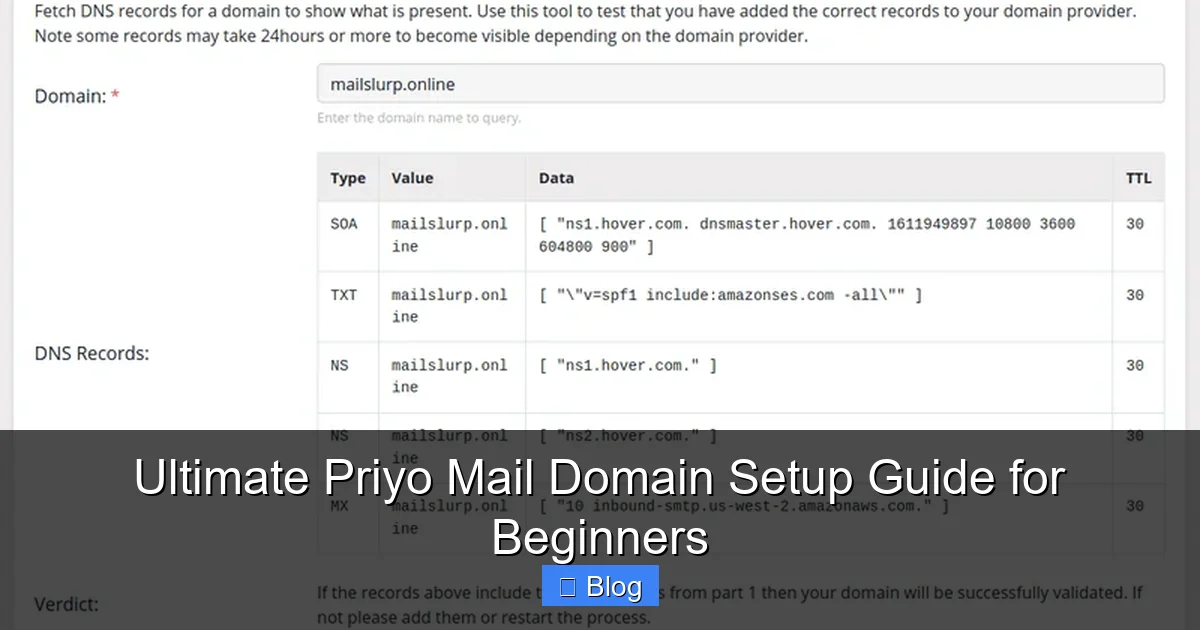
This is the most important part. Priyo will generate a list of DNS records you need to add to your domain. These typically include:
– MX (Mail Exchange) records
– SPF (Sender Policy Framework) record
– DKIM (DomainKeys Identified Mail) record
– CNAME (Canonical Name) record for webmail access
Each record has a specific purpose. MX tells the internet where to deliver your emails. SPF and DKIM help prevent spam and spoofing. CNAME lets you access your inbox via webmail.yourdomain.com.
Step 5: Update DNS Settings at Your Registrar
Now, log in to your domain registrar’s website (like GoDaddy or Namecheap). Navigate to the DNS management section. You’ll see a list of existing records. Here’s how to add the new ones:
- MX Record: Replace any existing MX records with the ones provided by Priyo. Set the priority as instructed (usually 10).
- SPF Record: Add a TXT record with the SPF value from Priyo. It usually looks like:
v=spf1 include:priyomail.com ~all - DKIM Record: Add another TXT record with the DKIM selector and key provided by Priyo. This might look like:
priyo._domainkey.yourdomain.comwith a long string of characters. - CNAME Record: Create a CNAME record pointing
webmailtowebmail.priyomail.com.
Take your time. One typo can break email delivery. Double-check each entry before saving.
Step 6: Save and Wait for DNS Propagation
After saving your DNS changes, click “Save” or “Update DNS.” Now, the hard part: waiting. DNS changes can take anywhere from 10 minutes to 48 hours to propagate globally. Most updates happen within a few hours.
You can check the status using free tools like WhatsMyDNS.net. Just enter your domain and select the record type (MX, SPF, etc.) to see if it’s live worldwide.
Verifying Your Setup and Testing Email Delivery
Visual guide about Ultimate Priyo Mail Domain Setup Guide for Beginners
Image source: mailslurp.com
Once DNS propagation is complete, it’s time to verify your setup and test your new email.
Step 1: Return to Priyo Mail Dashboard
Go back to your Priyo Mail account. The system should now detect that your DNS records are correctly configured. You’ll see a green checkmark or “Verified” status next to your domain.
Step 2: Create Your First Email Account
Click “Add User” or “Create Email.” Enter the email address you want (e.g., [email protected]), set a strong password, and assign permissions if needed. You can also set up email aliases or forwarding rules.
Step 3: Test Sending and Receiving Emails
Send a test email from your new address to a personal Gmail or Outlook account. Check if it arrives in the inbox—not the spam folder. Then, reply to that email to confirm two-way communication works.
If the email lands in spam, don’t panic. It could be due to missing or incorrect SPF/DKIM records. Double-check your DNS settings and ensure all records match Priyo’s instructions exactly.
Step 4: Set Up Email on Your Devices
Now that your email is working, configure it on your phone, tablet, or desktop. Priyo supports IMAP and SMTP, so you can use apps like Apple Mail, Outlook, or Gmail.
For mobile setup:
– Open your email app
– Add a new account
– Choose “Other” or “Manual Setup”
– Enter your email and password
– Use Priyo’s server settings (usually provided in the dashboard)
For desktop:
– Open Outlook or Apple Mail
– Add account manually
– Input IMAP (incoming) and SMTP (outgoing) server details
Troubleshooting Common Priyo Mail Domain Issues
Even with careful setup, things can go wrong. Here’s how to fix the most common problems.
Emails Going to Spam
If your emails are landing in spam, it’s likely an authentication issue. Make sure your SPF and DKIM records are correctly configured. Also, avoid sending bulk emails right after setup—this can trigger spam filters. Warm up your domain by sending a few personal emails first.
DNS Changes Not Taking Effect
If your domain still isn’t verified after 24 hours, check for typos in your DNS records. Also, ensure you didn’t accidentally delete existing records (like A records for your website). Some registrars have a “DNS Propagation Check” tool—use it to verify.
Can’t Log In to Webmail
If you can’t access webmail.yourdomain.com, your CNAME record might be wrong. Double-check that it points to webmail.priyomail.com. Also, clear your browser cache or try a different browser.
Emails Not Sending
Check your SMTP settings. Make sure the outgoing server is correct and port 587 is used with TLS encryption. Also, verify your password—sometimes auto-fill gets it wrong.
Best Practices for Maintaining Your Priyo Mail Domain
Setting up your domain is just the beginning. To keep your email secure and reliable, follow these best practices.
Regularly Review DNS Records
Every few months, log in to your registrar and check that your DNS records haven’t changed. Sometimes updates or migrations can overwrite settings.
Enable Two-Factor Authentication (2FA)
Protect your Priyo Mail account with 2FA. This adds an extra layer of security, so even if someone gets your password, they can’t access your emails.
Monitor Email Logs
Priyo Mail provides logs showing sent and received emails. Review them weekly to spot unusual activity, like failed login attempts or spam spikes.
Keep Your Domain Renewed
Nothing breaks email faster than an expired domain. Set up auto-renewal with your registrar to avoid downtime.
Train Your Team
If others use your Priyo Mail accounts, teach them about phishing, strong passwords, and email etiquette. A secure email system is only as strong as its users.
Conclusion: You’re Ready to Rock Your Custom Email
Congratulations! You’ve successfully completed the priyo mail domain setup and are now the proud owner of a professional, branded email address. No more generic Gmail handles—just clean, credible communication that reflects your brand.
From understanding DNS to troubleshooting spam issues, you’ve learned the essentials to keep your email running smoothly. And remember, Priyo Mail is more than just email—it’s a tool that grows with your business, offering security, flexibility, and peace of mind.
So go ahead, send that first email from [email protected]. You’ve earned it.
Frequently Asked Questions
How long does it take for DNS changes to take effect?
DNS changes typically take 10 minutes to 48 hours to propagate globally. Most updates are visible within a few hours. You can check progress using tools like WhatsMyDNS.net.
Can I use Priyo Mail with a subdomain?
Yes, you can set up Priyo Mail with a subdomain like mail.yourbusiness.com. Just follow the same DNS setup steps, but use the subdomain in all records.
What if I already use my domain for a website?
You can still use your domain for both a website and email. MX and email-related DNS records won’t affect your website’s A record, which points to your hosting server.
Do I need technical skills to set up Priyo Mail?
No. While DNS settings may seem technical, Priyo’s guided setup and this step-by-step guide make it beginner-friendly. Just follow the instructions carefully.
Can I migrate existing emails to Priyo Mail?
Yes, Priyo Mail supports email migration tools. You can import emails from Gmail, Outlook, or other providers during or after setup.
What happens if I change my domain registrar?
If you transfer your domain, you’ll need to re-enter the DNS records at the new registrar. Keep a copy of your Priyo DNS settings for easy reference.
Leave a Reply