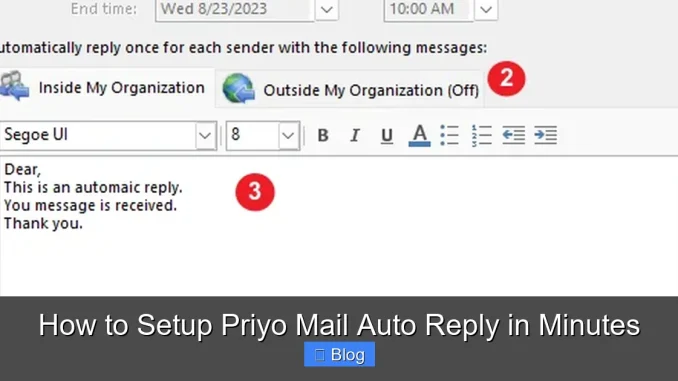
Setting up an auto reply in Priyo Mail is quick, easy, and essential for staying professional when you’re unavailable. Whether you’re on vacation, in a meeting, or simply offline, this feature ensures your contacts receive an immediate, helpful response.
Key Takeaways
- Auto replies save time and improve customer experience: They provide instant acknowledgment, even when you’re not available to respond personally.
- Setting up auto reply in Priyo Mail takes less than 5 minutes: The process is intuitive and requires just a few clicks within your account settings.
- Customize your message for different scenarios: Tailor responses for vacations, business hours, or out-of-office situations to sound natural and professional.
- Use scheduling to automate timing: You can set start and end dates so the auto reply activates and deactivates automatically.
- Test your auto reply before going live: Always send a test email to confirm the message appears correctly and triggers as expected.
- Avoid overusing auto replies: Use them only when necessary to prevent spamming contacts with repetitive or irrelevant messages.
- Keep your message concise and informative: Include key details like return date, alternative contacts, or emergency instructions.
📑 Table of Contents
Why Use an Auto Reply in Priyo Mail?
Imagine you’re on a much-needed vacation, hiking through the mountains with no Wi-Fi in sight. You’ve told your team you’ll be offline for a week, but a client sends an urgent email. Without an auto reply, they might assume you’re ignoring them—leading to frustration, missed opportunities, or even lost business.
This is where Priyo Mail’s auto reply feature shines. It’s not just a convenience—it’s a communication lifeline. Whether you’re stepping away for a few hours or several days, an auto reply ensures your contacts know you’ve received their message and when they can expect a full response. It sets expectations, reduces anxiety, and maintains professionalism—all without you lifting a finger.
But it’s not just for vacations. Auto replies are useful during business trips, medical appointments, holidays, or even regular working hours when you’re in back-to-back meetings. With Priyo Mail, you can set up a smart, responsive system that works around your schedule, so you never miss a beat.
What Is Priyo Mail Auto Reply?
Priyo Mail auto reply is a built-in email automation feature that sends a pre-written message to anyone who emails you while the feature is active. Think of it as your digital assistant—politely letting people know you’re unavailable and providing helpful next steps.
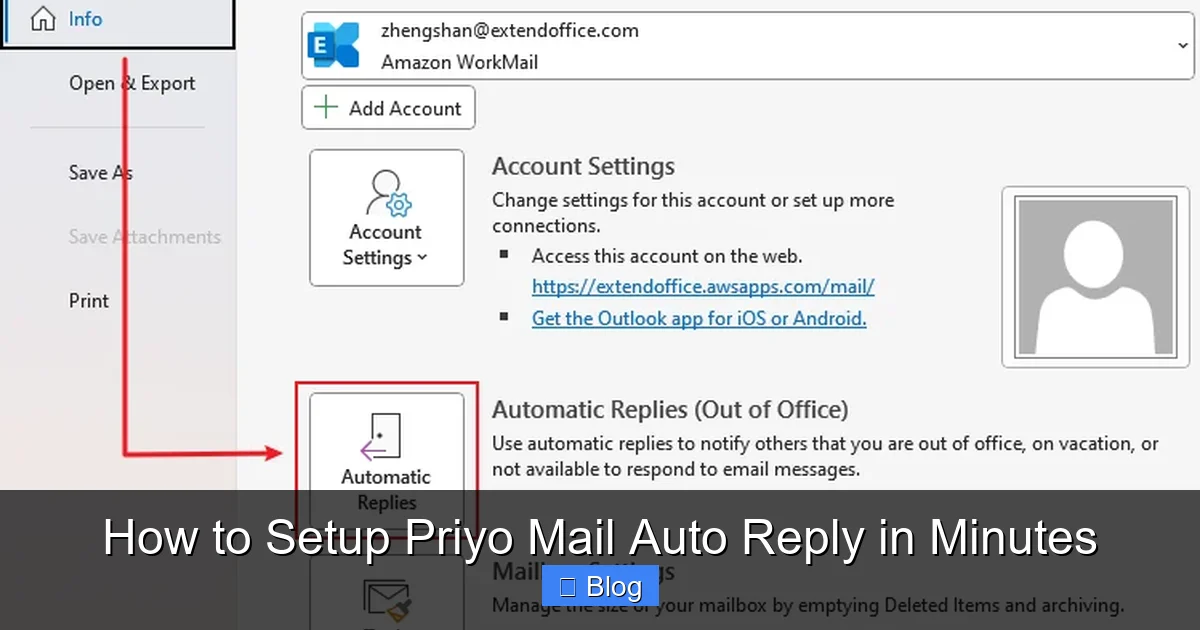
Visual guide about How to Setup Priyo Mail Auto Reply in Minutes
Image source: cdn.extendoffice.com
How It Works
Once enabled, the auto reply triggers automatically whenever someone sends you an email. The sender receives your custom message immediately, usually within seconds. You can customize the content, set specific dates and times, and even limit how often the same person receives the reply (to avoid spamming).
Common Use Cases
- Vacation or personal time off: Let contacts know you’re away and when you’ll return.
- Business travel: Inform clients you’re attending a conference or meeting and may have delayed responses.
- Weekend or after-hours coverage: Set auto replies to activate outside standard business hours.
- Medical leave or emergencies: Provide a brief update and direct urgent matters to a colleague.
- Product launches or events: Use auto replies to share event details or FAQs automatically.
The beauty of Priyo Mail’s auto reply is its flexibility. You’re not locked into a one-size-fits-all message. Instead, you can tailor responses to match your situation, tone, and audience.
Step-by-Step Guide to Setting Up Auto Reply in Priyo Mail
Now that you understand the value of auto replies, let’s walk through the setup process. Don’t worry—it’s simpler than making a cup of coffee. Follow these steps, and you’ll have your auto reply running in under five minutes.
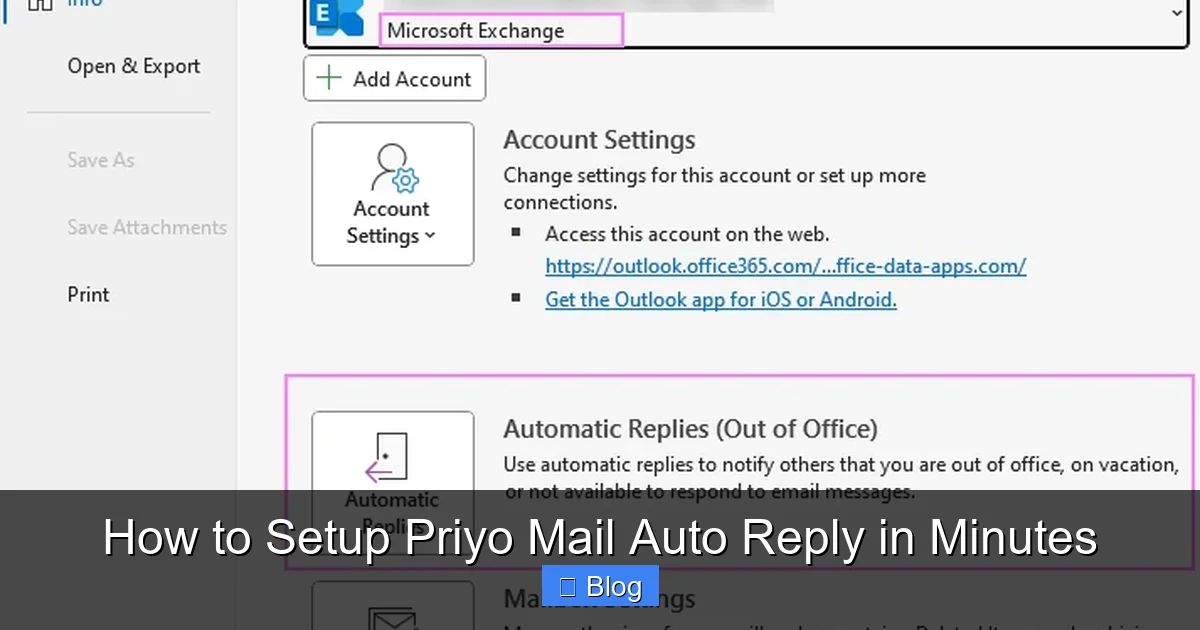
Visual guide about How to Setup Priyo Mail Auto Reply in Minutes
Image source: cdn.ablebits.com
Step 1: Log In to Your Priyo Mail Account
Open your web browser and go to the Priyo Mail login page. Enter your email address and password. If you’re using two-factor authentication, complete the verification step. Once logged in, you’ll land on your inbox dashboard.
Step 2: Navigate to Settings
Look for the gear icon (⚙️) usually located in the top-right corner of the screen. Click it to open the settings menu. From the dropdown, select “Settings” or “Account Settings,” depending on your version of Priyo Mail.
Step 3: Find the Auto Reply or Vacation Responder Option
In the settings menu, scroll down or use the sidebar to find a section labeled “Auto Reply,” “Vacation Responder,” or “Out of Office.” This is where you’ll configure your automated message. Click to expand the section.
Step 4: Enable Auto Reply
Toggle the switch to “On” or check the box that says “Enable Auto Reply.” This activates the feature. You’ll now see fields where you can customize your message and set timing options.
Step 5: Write Your Auto Reply Message
This is the most important part. Your message should be clear, friendly, and informative. Here’s a simple template you can adapt:
Subject: Out of Office: [Your Name] – Returning [Date]
Hi there,
Thank you for your email. I’m currently out of the office and will return on [Date]. I’ll respond to your message as soon as possible upon my return.
For urgent matters, please contact [Colleague’s Name] at [Email] or [Phone Number].
Best regards,
[Your Name]
Feel free to personalize this. Add humor if it fits your brand, or keep it formal for corporate clients. Just make sure it includes:
- Your name
- Return date
- Alternative contact (if applicable)
- A polite closing
Step 6: Set the Date and Time Range
Priyo Mail allows you to schedule your auto reply. Enter the start date and time, and the end date and time. For example, if you’re leaving Friday at 5 PM and returning Monday at 9 AM, set the auto reply to run from Friday 5:00 PM to Monday 9:00 AM.
This ensures the feature turns on and off automatically—no need to remember to disable it later.
Step 7: Choose Recipient Options (Optional)
Some versions of Priyo Mail let you choose who receives the auto reply. You can set it to:
- Everyone (including external senders)
- Only people in your contacts
- Only people in your organization
For most users, “Everyone” is the best choice to ensure no one is left in the dark.
Step 8: Limit Replies to Avoid Spam
To prevent sending multiple auto replies to the same person, enable the option that says “Send auto reply only once per sender.” This way, if someone emails you three times while you’re away, they’ll only get one auto reply—keeping things clean and professional.
Step 9: Save Your Settings
Once everything looks good, click “Save” or “Apply.” Your auto reply is now active! You’ll see a confirmation message, and the feature will begin working immediately (or at your scheduled start time).
Tips for Writing an Effective Auto Reply Message
Not all auto replies are created equal. A poorly written message can confuse, annoy, or even damage your reputation. Here’s how to make yours stand out for the right reasons.
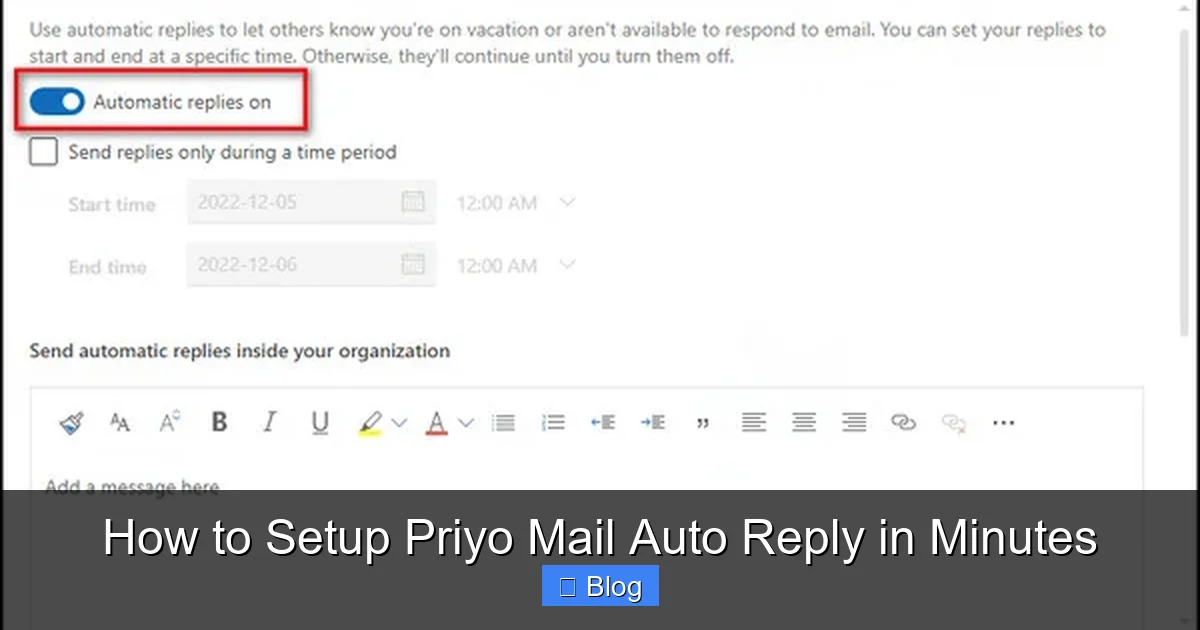
Visual guide about How to Setup Priyo Mail Auto Reply in Minutes
Image source: 10scopes.com
Keep It Short and Sweet
People skim emails. Get to the point quickly. Avoid long paragraphs or unnecessary details. A good auto reply is under 100 words.
Use a Friendly Tone
Even if you’re out of the office, sound approachable. Use phrases like “Thank you for reaching out” or “I appreciate your patience.” Avoid robotic language like “This is an automated response.”
Include Key Information
Always answer these questions in your message:
- When will you return?
- Who can help in your absence?
- Is there an emergency contact?
Personalize When Possible
If you know you’ll be traveling for a specific event (like a conference), mention it. For example: “I’m attending the Tech Summit in Berlin and will have limited access to email.” This adds context and shows you’re engaged.
Avoid Over-Sharing
Don’t include personal details like “I’m at the beach with my family” or “I’m recovering from surgery.” Keep it professional and relevant to work.
Test Before You Go
Send a test email from another account to your Priyo Mail address. Check that the auto reply arrives, looks correct, and includes all the details you intended. Fix any typos or formatting issues before going live.
Common Mistakes to Avoid
Even with the best intentions, it’s easy to slip up when setting up an auto reply. Here are some common pitfalls and how to avoid them.
Forgetting to Turn It Off
Nothing says “I forgot you existed” like an auto reply that’s still active weeks after you’ve returned. Always double-check your end date, or better yet, set a calendar reminder to disable it.
Sending Replies to Internal Team Members
If your team emails you internally, they don’t need an auto reply. Use the recipient filter to exclude internal emails unless absolutely necessary.
Using a Generic or Outdated Message
A message that says “I’m on vacation” with no return date or contact info is worse than no message at all. Always keep your auto reply updated and specific.
Ignoring Urgent Requests
If someone marks an email as “urgent,” your auto reply should still acknowledge it—even if you can’t respond immediately. Consider adding a line like: “If this is urgent, please contact [Name] at [Email].”
Overusing Auto Replies
Don’t set an auto reply for every minor absence. Use it for significant time off—more than a day or two. Otherwise, it loses its impact and may annoy recipients.
Advanced Features and Pro Tips
Once you’ve mastered the basics, explore these advanced features to get even more out of your Priyo Mail auto reply.
Use Multiple Auto Replies for Different Scenarios
Some users create different messages for different situations—like one for vacation, one for business travel, and one for illness. Save these as drafts or templates so you can quickly switch them in.
Integrate with Calendar
If Priyo Mail supports calendar integration, link your auto reply to your schedule. When you mark yourself as “Out of Office” in your calendar, the auto reply can activate automatically.
Add a Link to FAQs or Resources
If you frequently get the same questions, include a link to a help page or FAQ section in your auto reply. For example: “For common questions, visit our support page at [link].”
Use HTML Formatting (If Supported)
Make your message stand out with bold text, bullet points, or a company logo. Just keep it clean and readable on all devices.
Monitor Auto Reply Activity
Check your sent folder or activity log to see how many auto replies were sent. This helps you track engagement and identify frequent senders who might need a follow-up.
Conclusion
Setting up an auto reply in Priyo Mail isn’t just a smart move—it’s a necessity in today’s fast-paced digital world. It shows respect for your contacts’ time, maintains professionalism, and ensures no message slips through the cracks.
With just a few clicks, you can create a responsive, reliable system that works even when you can’t. Whether you’re stepping away for a weekend or a week, your auto reply will keep communication flowing smoothly. So go ahead—set it up today, test it, and enjoy the peace of mind that comes with knowing your inbox is under control.
Frequently Asked Questions
How do I know if my auto reply is working?
Send a test email from another account to your Priyo Mail address. If you receive the auto reply, it’s working correctly. Check the message for accuracy and formatting.
Can I set different auto replies for different senders?
Currently, Priyo Mail does not support personalized auto replies based on sender. However, you can customize the message and use recipient filters to limit who receives it.
Will my auto reply send to spam or promotional emails?
Auto replies typically only trigger for direct emails to your inbox. They usually won’t send to spam, promotions, or bulk emails, depending on your email filtering settings.
Can I schedule an auto reply in advance?
Yes! Priyo Mail allows you to set start and end dates and times. The auto reply will activate and deactivate automatically based on your schedule.
What happens if I forget to turn off my auto reply?
Your auto reply will continue sending until the end date you set. If you forget to disable it, manually turn it off in your settings as soon as possible to avoid confusion.
Is there a limit to how long I can keep auto reply active?
There’s no strict time limit, but it’s best practice to use auto replies only for short-term absences. For extended leave, consider updating your message or setting a new one periodically.
Leave a Reply