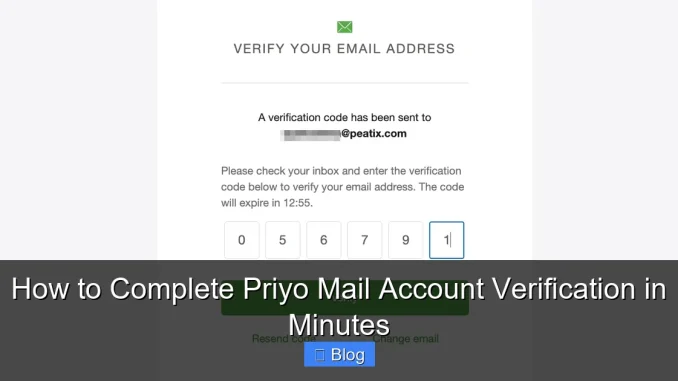
Verifying your Priyo Mail account is essential to unlock full features and ensure secure communication. This guide walks you through the entire process—from receiving the verification email to confirming your identity—in simple, easy-to-follow steps.
Key Takeaways
- Account verification is mandatory: You cannot access Priyo Mail’s full functionality without completing verification.
- Check your inbox and spam folder: The verification email may land in spam, so always double-check both folders.
- Use a valid and active email address: Ensure the email you provide during sign-up is accessible and correctly spelled.
- Verification links expire: Most Priyo Mail verification links are time-sensitive—act quickly to avoid resending.
- Mobile and desktop users follow the same steps: The process works seamlessly across devices.
- Contact support if issues persist: Priyo Mail’s customer service can help resolve verification problems swiftly.
- Keep your login details safe: Once verified, protect your account with a strong password and two-factor authentication.
📑 Table of Contents
Why Priyo Mail Account Verification Matters
So, you’ve signed up for Priyo Mail—congratulations! But before you start sending emails, organizing your inbox, or syncing with other apps, there’s one crucial step you can’t skip: account verification. Think of it as the digital handshake that confirms you’re a real person and not a bot trying to spam the system.
Priyo Mail, like most reputable email services, requires verification to protect users and maintain a secure platform. Without it, your account remains in a limited state—you might not be able to send emails, add contacts, or even access your inbox. Worse, unverified accounts are often flagged as suspicious and may be deactivated after a few days. That’s why completing Priyo Mail account verification isn’t just recommended—it’s essential.
The Security Benefits of Verification
When you verify your Priyo Mail account, you’re doing more than just ticking a box. You’re helping to prevent fraud, phishing, and unauthorized access. Verification confirms that the email address you provided actually belongs to you. This simple step drastically reduces the risk of fake accounts flooding the system, which keeps everyone’s experience safer and more reliable.
Plus, verified accounts often get priority support, faster load times, and access to premium features like custom domains or advanced filters. In short, verification isn’t just a formality—it’s your ticket to the full Priyo Mail experience.
Step-by-Step Guide to Verifying Your Priyo Mail Account
Now that you understand why verification matters, let’s get into the nitty-gritty: how to complete Priyo Mail account verification in minutes. The good news? It’s easier than you think. Whether you’re on your phone, tablet, or desktop, the process is straightforward and takes less than five minutes.
Visual guide about How to Complete Priyo Mail Account Verification in Minutes
Image source: designmodo.com
Step 1: Sign Up and Check Your Email
After creating your Priyo Mail account, the system will automatically send a verification email to the address you provided. This usually happens within seconds, but sometimes it can take a few minutes—especially during peak hours or if your internet connection is slow.
Open your email app or go to your webmail provider (like Gmail, Outlook, or Yahoo) and look for an email from [email protected] or a similar official address. The subject line will typically say something like “Verify Your Priyo Mail Account” or “Confirm Your Email Address.”
Pro Tip: If you don’t see the email right away, wait about 2–3 minutes. Sometimes emails get delayed due to server traffic. Still nothing? Move to the next step.
Step 2: Check Your Spam or Junk Folder
We’ve all been there—you’re waiting for an important email, and it never shows up in your inbox. But then you remember: maybe it went to spam? This is especially common with new email services like Priyo Mail, which your email provider might not recognize yet.
Open your spam or junk folder and search for “Priyo Mail” or “verification.” If you find the email there, mark it as “Not Spam” or “Move to Inbox.” This tells your email provider that future messages from Priyo Mail are legitimate and should go straight to your inbox.
Example: Sarah signed up for Priyo Mail but didn’t receive the verification email. After checking her spam folder, she found it buried under promotional emails. Once she moved it to her inbox, she was able to click the link and verify her account instantly.
Step 3: Click the Verification Link
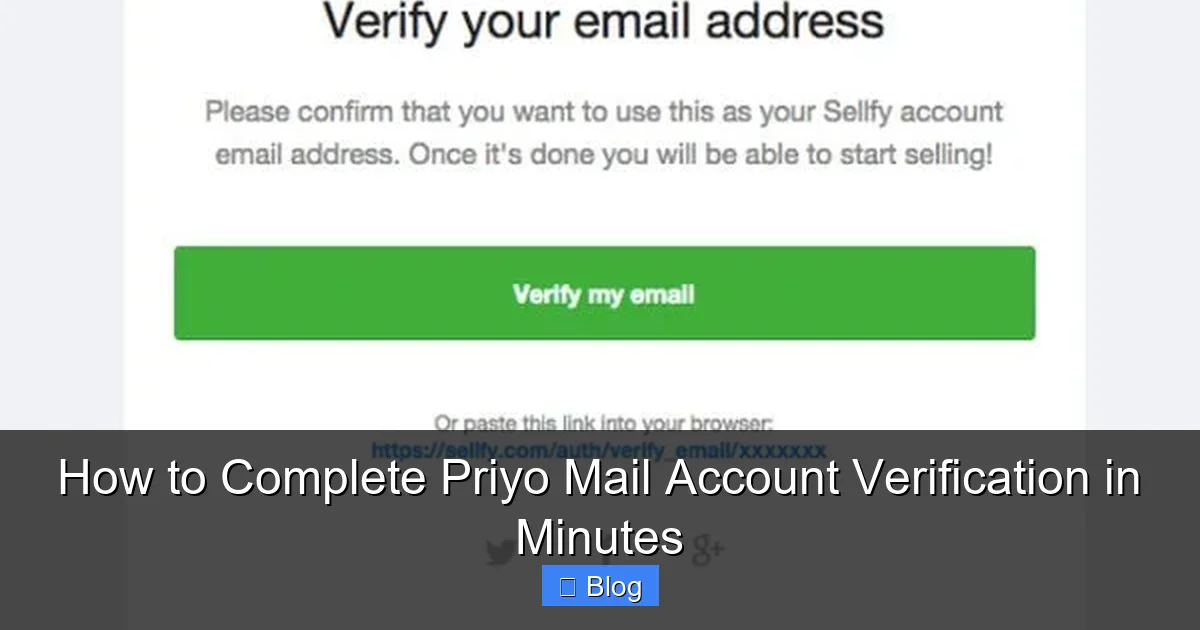
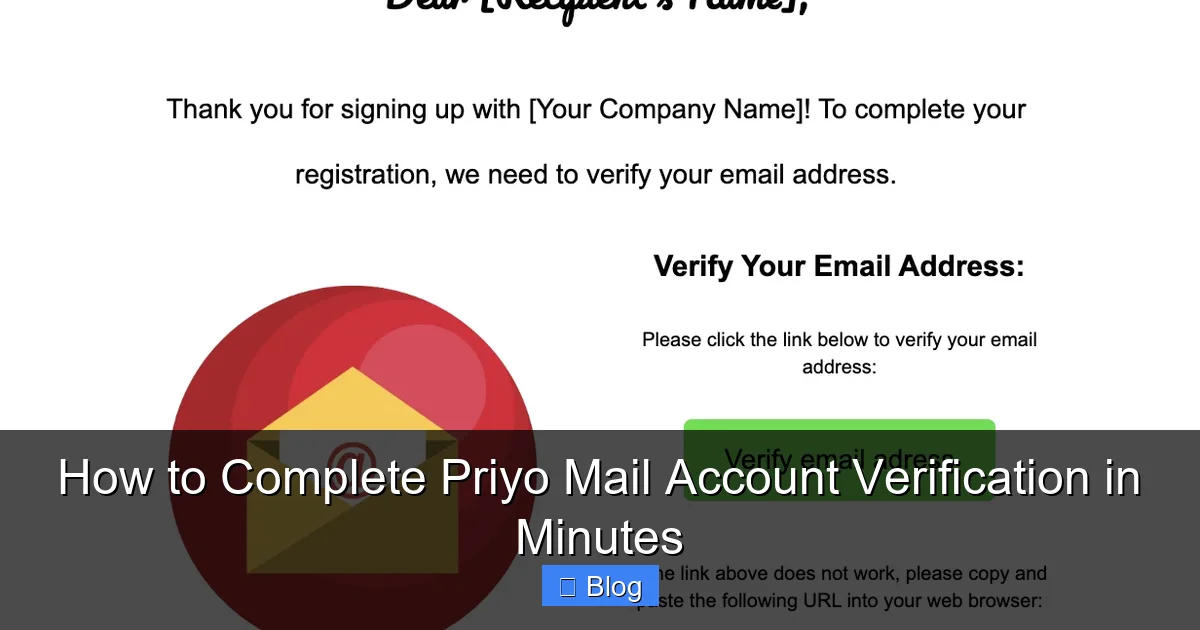
Once you’ve located the email, open it and look for a bright, clearly labeled button—usually green or blue—that says “Verify Email,” “Confirm Account,” or “Activate Now.” Click it.
This link will redirect you to a secure Priyo Mail page where your account status updates automatically. You’ll see a confirmation message like “Your email has been verified successfully!” or “Account activated. Welcome to Priyo Mail!”
Important: Verification links are often time-sensitive. Most expire within 24 hours, so don’t wait too long. If the link doesn’t work, it may have expired—don’t panic. Just request a new one (we’ll cover that in a moment).
Step 4: Log In to Your Verified Account
After clicking the link, return to the Priyo Mail login page and enter your email and password. You should now have full access to your inbox, settings, and all features. Try sending a test email to yourself or a friend to confirm everything is working.
If you’re still seeing a “Verify Your Account” banner or warning, try refreshing the page or clearing your browser cache. Sometimes the system takes a few seconds to update.
What to Do If You Don’t Receive the Verification Email
So, you’ve waited, checked spam, and still no email? Don’t worry—this happens more often than you’d think. Here’s how to troubleshoot and get back on track.
Visual guide about How to Complete Priyo Mail Account Verification in Minutes
Image source: s3.amazonaws.com
Resend the Verification Email
Priyo Mail allows users to resend the verification email if the first one doesn’t arrive. Here’s how:
- Go to the Priyo Mail login page.
- Enter your email and password.
- Look for a message like “Your account is not verified. Click here to resend the email.”
- Click the link and wait for the new email to arrive.
This usually works within 1–2 minutes. If it still doesn’t show up, try the next step.
Double-Check Your Email Address
It’s easy to make a typo when signing up—especially on a small phone screen. Did you type gmail.com instead of hotmail.com? Or maybe you added an extra letter, like [email protected] instead of [email protected]?
Go back to your Priyo Mail account settings and verify the email address on file. If it’s wrong, update it and request a new verification email. Priyo Mail will send the confirmation to the corrected address.
Try a Different Email Provider
Sometimes, certain email providers (like older versions of Outlook or regional services) block or delay emails from new platforms. If you’re using a less common provider, try signing up with a Gmail or Yahoo address instead.
Once verified, you can always forward your Priyo Mail to your preferred inbox or set up email aliases later.
Common Issues and How to Fix Them
Even with the best intentions, things can go wrong. Here are some of the most common Priyo Mail verification problems—and how to solve them fast.
Visual guide about How to Complete Priyo Mail Account Verification in Minutes
Image source: app.mailsoftly.com
“Verification Link Expired” Error
If you see this message, it means the link you clicked is no longer valid. This usually happens if you waited more than 24 hours to verify. The fix? Simply request a new verification email using the steps above.
Pro Tip: Open the verification email as soon as you receive it. Set a reminder on your phone if needed—“Verify Priyo Mail in 10 minutes!”
“Invalid or Broken Link” Error
Sometimes, the link gets cut off or corrupted—especially if you’re copying and pasting it manually. Instead of typing or pasting, always click the button directly in the email.
If the button doesn’t work, try opening the email in a different browser or device. For example, if it fails on Chrome, try Firefox or Safari.
Account Still Shows as Unverified
You clicked the link, saw the success message, but your account still says “unverified.” This is usually a sync issue. Try these fixes:
- Log out of Priyo Mail and log back in.
- Clear your browser cookies and cache.
- Try accessing Priyo Mail from a private/incognito window.
- Wait 5–10 minutes—sometimes the system needs time to update.
If none of these work, it’s time to contact support.
Tips for a Smooth Verification Experience
Want to avoid headaches altogether? Follow these best practices to make Priyo Mail account verification quick and painless.
Use a Reliable Internet Connection
A weak or unstable connection can cause emails to fail to send or links to break. Use Wi-Fi or a strong mobile data signal when verifying your account.
Keep Your Devices Updated
Outdated browsers or email apps may not display verification emails correctly. Make sure your phone, tablet, and computer are running the latest software.
Enable Notifications
Turn on email notifications so you know the moment the verification email arrives. This is especially helpful if you’re signing up on the go.
Save Your Login Details
After verification, save your Priyo Mail login information in a secure password manager. This prevents future login issues and keeps your account safe.
Final Thoughts: You’re All Set!
And just like that, you’ve completed Priyo Mail account verification in minutes! It’s a small step with big rewards—unlocking a secure, feature-rich email experience that’s perfect for personal use, work, or staying connected with friends and family.
Remember, verification isn’t a one-time hassle—it’s a gateway to trust, security, and full functionality. Whether you’re sending your first email or setting up filters and folders, you can now do it all with confidence.
So go ahead—log in, explore your new inbox, and enjoy everything Priyo Mail has to offer. And if you ever run into issues, don’t hesitate to reach out to their support team. They’re there to help!
Frequently Asked Questions
How long does Priyo Mail account verification take?
The verification process typically takes less than 5 minutes, including receiving the email and clicking the link. However, email delivery can vary based on your provider and internet speed.
What if I don’t receive the verification email?
First, check your spam or junk folder. If it’s not there, request a new verification email from the Priyo Mail login page. Ensure your email address was entered correctly during sign-up.
Can I verify my Priyo Mail account on mobile?
Yes! The verification process works the same on mobile devices. Open the email in your phone’s mail app and tap the verification button to complete the process.
Do I need to verify my account every time I log in?
No. Once your Priyo Mail account is verified, it remains verified unless you reset your password or change your email address. You only need to verify once.
What happens if I ignore the verification email?
Unverified accounts may have limited functionality and could be deactivated after a few days. To avoid losing access, complete verification as soon as possible.
Can I use Priyo Mail without verifying my account?
You can create an account, but you won’t be able to send emails, add contacts, or access most features until verification is complete. It’s required for full use.
Leave a Reply