Struggling with a cluttered Priyo Mail inbox? You’re not alone. Mastering Priyo Mail folder organization can save you time, reduce stress, and boost productivity. This guide walks you through practical strategies to sort, label, and automate your emails like a pro.
Key Takeaways
- Create a clear folder hierarchy: Use logical categories like Work, Personal, Finance, and Projects to keep emails easy to find.
- Leverage labels and tags: Color-code and tag emails for quick visual identification and filtering.
- Automate with filters and rules: Set up automatic sorting to move incoming emails to the right folders without manual effort.
- Archive instead of delete: Keep your inbox clean by archiving old emails you may need later.
- Schedule regular cleanups: Dedicate time weekly or monthly to review and organize your folders.
- Use search shortcuts: Learn advanced search operators to locate emails instantly, even in large folders.
- Sync across devices: Ensure your folder structure is consistent on desktop, mobile, and web for seamless access.
Why Priyo Mail Folder Organization Matters
Let’s be honest—email overload is real. Whether you’re managing work projects, personal correspondence, or subscription updates, your inbox can quickly spiral into chaos. That’s where Priyo Mail folder organization comes in. It’s not just about tidiness; it’s about efficiency, focus, and peace of mind.
When your emails are well-organized, you spend less time searching and more time doing. Imagine opening your inbox and instantly knowing where everything is. No more scrolling through hundreds of unread messages or missing important deadlines because a critical email got buried. With the right system, Priyo Mail becomes a powerful tool—not a source of stress.
Think of your email like a digital filing cabinet. If every document is tossed into one drawer, finding anything becomes a nightmare. But when you use folders, labels, and rules, you create a system that works for you. Whether you’re a busy professional, a student, or someone who just wants a cleaner digital life, mastering Priyo Mail folder organization is a game-changer.
Getting Started: Setting Up Your Folder Structure
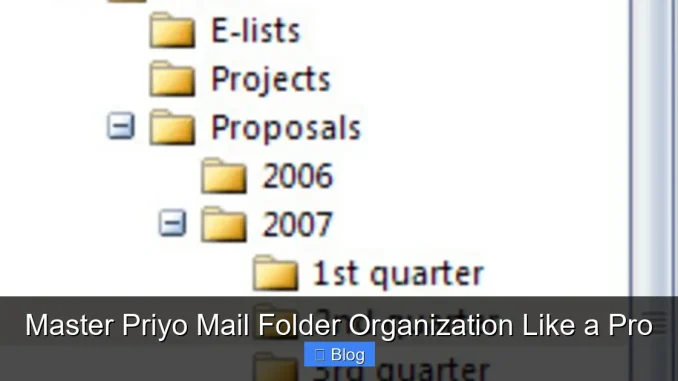
The first step to effective Priyo Mail folder organization is building a smart folder structure. Don’t just create random folders—think strategically. Start with broad categories and then break them down into subfolders as needed.
Choose Logical Main Folders
Begin with high-level folders that reflect your life and work. Common examples include:
- Work: For job-related emails, client communications, and team updates.
- Personal: Family, friends, travel plans, and personal projects.
- Finance: Bank statements, bills, receipts, and tax documents.
- Subscriptions: Newsletters, promotions, and service updates.
- Projects: Specific initiatives or campaigns with their own timelines.
These main folders act as your email “departments.” They keep things separated so you’re not mixing work invoices with vacation photos.
Create Subfolders for Precision
Once you have your main folders, add subfolders for more detail. For example, under Work, you might have:
- Work/Client A
- Work/Team Meetings
- Work/Reports
Or under Finance:
- Finance/Bank Statements
- Finance/Taxes
- Finance/Insurance
This layered approach makes it easy to drill down to exactly what you need. Just remember: don’t go overboard. Too many subfolders can be as confusing as too few. Aim for clarity, not complexity.
Use Consistent Naming Conventions
Stick to a naming style that’s clear and predictable. Avoid vague names like “Stuff” or “Misc.” Instead, use descriptive terms like “Invoices 2024” or “Travel – Japan Trip.” Capitalize the first letter of each word for readability, and avoid special characters that might cause sync issues.
Using Labels and Tags to Supercharge Organization
Folders are great, but labels and tags take Priyo Mail organization to the next level. They let you categorize emails in multiple ways without moving them from their original location.
Color-Coded Labels for Quick Recognition
Priyo Mail allows you to create custom labels with colors. Use this feature to highlight priority levels or types of content. For example:
- Red: Urgent – needs immediate attention
- Orange: Follow-up required
- Green: Completed or resolved
- Blue: Reference material
When you scan your inbox, these colors act like traffic lights—red means stop and act, green means it’s safe to move on. This visual system saves time and reduces mental load.
Tagging for Flexibility
Unlike folders, a single email can have multiple labels. That means you can tag an email as both “Work” and “Urgent” without duplicating it. This is especially useful for cross-functional projects or emails that serve multiple purposes.
For instance, a message from your boss about a client deadline could be labeled:
- Work
- Client A
- Urgent
- Due This Week
Now, whether you search by project, priority, or deadline, that email pops up instantly.
Creating and Managing Labels
To create a label in Priyo Mail:
- Open the email you want to label.
- Click the “Label” icon (usually looks like a tag or folder).
- Select “Create new label,” name it, and choose a color.
- Apply it to the email.
You can also apply labels in bulk by selecting multiple emails and choosing the label from the toolbar. Over time, build a library of labels that match your workflow.
Automating with Filters and Rules
Manual sorting gets old fast. The real power of Priyo Mail folder organization comes from automation. By setting up filters and rules, you can train your inbox to sort emails for you—automatically.
How Filters Work
Filters (also called rules) scan incoming emails based on criteria you set—like sender, subject line, or keywords—and then take action, such as moving the email to a folder or applying a label.
For example, you can create a filter that:
- Moves all emails from your bank to the “Finance/Bank Statements” folder.
- Labels newsletters from “Tech Weekly” with the “Subscriptions” tag.
- Flags emails containing “invoice” as “Urgent” and sends them to “Work/Invoices.”
This means your inbox stays clean from day one—no daily sorting required.
Setting Up Your First Filter
Here’s how to create a filter in Priyo Mail:
- Go to Settings > Filters and Blocked Addresses.
- Click “Create a new filter.”
- Enter your criteria (e.g., “From: [email protected]”).
- Click “Next” and choose actions (e.g., “Apply label: Subscriptions,” “Skip the Inbox”).
- Save the filter.
Test it by sending yourself a sample email that matches the criteria. If it works, you’ll see it land in the right place automatically.
Pro Tips for Smart Filtering
- Use wildcards: Search for “*invoice*” to catch variations like “Invoice #123” or “Final Invoice.”
- Combine conditions: Set filters to trigger only when multiple criteria are met (e.g., “From: [email protected] AND Subject: contains ‘urgent’”).
- Archive automatically: For low-priority emails like receipts or confirmations, set filters to archive them directly—keeping your inbox focused on actionable items.
With a few well-placed filters, you can cut your email management time in half.
Archiving vs. Deleting: What’s the Difference?
One of the biggest mistakes people make in Priyo Mail folder organization is confusing archiving with deleting. They’re not the same—and understanding the difference is key to a clean, functional inbox.
What Is Archiving?
Archiving removes an email from your inbox but keeps it in your account. It’s like moving a file to a storage box—it’s out of sight, but not gone. You can still search for it, restore it, or access it from any device.
Use archiving for:
- Emails you’ve read and don’t need to act on.
- Reference materials you might need later.
- Old project updates that are complete.
Archiving keeps your inbox uncluttered while preserving important information.
When to Delete
Deleting permanently removes an email from your account (after it’s in the trash for 30 days). Only delete emails that are truly unnecessary—like spam, outdated promotions, or duplicate messages.
Be cautious: once deleted, recovery is difficult. If you’re unsure, archive instead.
Best Practice: Archive First, Delete Later
A good rule of thumb: archive liberally, delete sparingly. If you archive an email and never look for it again, you can always delete it during a cleanup session. But if you delete it too soon, you might regret it.
During your weekly email review, go through your archived folders and delete anything that’s no longer needed. This keeps your storage lean and your system efficient.
Maintaining Your System: Regular Cleanups and Habits
Even the best Priyo Mail folder organization system needs maintenance. Without regular upkeep, folders get messy, labels get outdated, and filters stop working. The key is consistency.
Schedule Weekly Email Reviews
Set aside 15–20 minutes each week to:
- Clear your inbox by archiving or filing emails.
- Review labels and update them if needed.
- Check that filters are working correctly.
- Delete unnecessary archived emails.
Think of it like cleaning your desk—small, regular efforts prevent big messes.
Monthly Deep Dives
Once a month, do a deeper cleanup:
- Review your folder structure. Are there unused folders? Can you merge or rename any?
- Update labels to reflect current projects or priorities.
- Test and refine your filters.
- Empty your trash folder to free up space.
This monthly check-in keeps your system aligned with your evolving needs.
Build Smart Email Habits
Good organization starts with good habits. Try these daily practices:
- Process emails once: When you open an email, decide immediately: reply, archive, file, or delete.
- Use the 2-minute rule: If an email takes less than 2 minutes to handle, do it right away.
- Unsubscribe regularly: Reduce clutter by opting out of newsletters you no longer read.
- Turn off non-essential notifications: Constant alerts disrupt focus and encourage reactive email habits.
These small changes add up to a much calmer, more controlled inbox.
Advanced Tips for Power Users
Once you’ve mastered the basics, take your Priyo Mail folder organization to the next level with these pro tips.
Use Search Operators Like a Pro
Priyo Mail supports advanced search syntax. Use it to find emails fast:
from:[email protected]– Emails from a specific sender.subject:“meeting notes”– Emails with that exact phrase in the subject.has:attachment– Emails with files attached.older_than:1y– Emails older than one year.label:Urgent– All emails with the “Urgent” label.
Combine operators for precision: from:[email protected] AND subject:“report”.
Sync Across All Devices
Make sure your folder structure and labels sync properly across desktop, mobile, and web. Check your settings to ensure IMAP or cloud sync is enabled. This way, whether you’re on your phone or laptop, your system stays consistent.
Backup Important Emails
For critical emails—like contracts or legal documents—consider exporting them as PDFs and storing them in a secure cloud drive. This adds an extra layer of protection beyond Priyo Mail’s storage.
Conclusion
Mastering Priyo Mail folder organization isn’t about perfection—it’s about creating a system that works for you. With smart folders, color-coded labels, automated filters, and regular maintenance, you can transform your inbox from a source of stress into a well-oiled productivity machine.
Start small. Pick one area—like setting up three main folders or creating your first filter—and build from there. Over time, these habits will become second nature. And when they do, you’ll wonder how you ever managed without them.
Remember: a clean inbox is more than just tidy. It’s clear, focused, and ready for whatever comes next. So take control today—your future self will thank you.
FAQs
How do I create a new folder in Priyo Mail?
To create a folder, go to your Priyo Mail sidebar, right-click on “Folders,” and select “New Folder.” Name it, choose a location, and click “Create.” You can then drag emails into it or set up filters to auto-sort.
Can I use both folders and labels at the same time?
Yes! Folders organize where an email lives, while labels add metadata. You can file an email in the “Work” folder and still label it “Urgent” or “Client A” for easy filtering and searching.
Will my filters work on my mobile app?
Yes, filters you set up on the web version of Priyo Mail sync to the mobile app. Just make sure you’re logged into the same account and that sync is enabled in your settings.
How often should I clean up my email folders?
Do a quick weekly review to archive and sort new emails. Once a month, do a deeper cleanup to delete old messages, update labels, and refine your folder structure.
What’s the best way to handle newsletters and promotions?
Create a “Subscriptions” folder and set up a filter to automatically move promotional emails there. Apply a “Read Later” label if you want to review them periodically, or unsubscribe from ones you no longer read.
Can I recover an email after deleting it?
Deleted emails go to the Trash folder and stay there for 30 days. You can restore them during that time. After 30 days, they’re permanently deleted and cannot be recovered.
This is a comprehensive guide about priyo mail folder organization.
Key Takeaways
- Understanding priyo mail folder organization: Provides essential knowledge
Frequently Asked Questions
What is priyo mail folder organization?
priyo mail folder organization is an important topic with many practical applications.
Leave a Reply