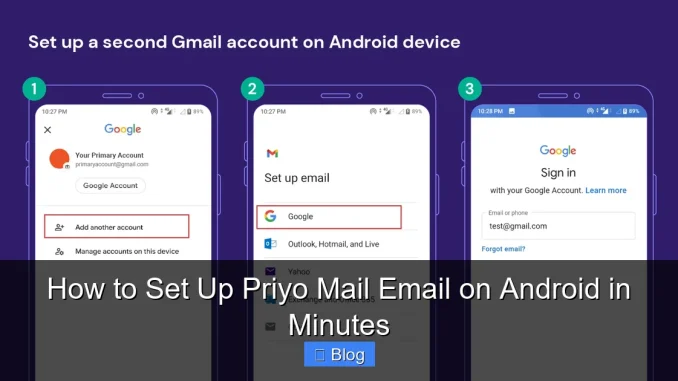
Setting up Priyo Mail on your Android device is quick and simple, even if you’re not tech-savvy. With just a few taps, you can access your emails seamlessly using the built-in email app or Gmail. This guide walks you through every step to ensure a smooth and secure setup.
Key Takeaways
- Easy Setup Process: Priyo Mail can be configured on Android in under 5 minutes using standard email protocols.
- Compatible with Multiple Apps: Works with the default Android Email app, Gmail, and third-party email clients like Outlook.
- Secure Connection: Uses IMAP/SMTP with SSL encryption to protect your data during transmission.
- Automatic Sync: Emails, contacts, and calendars sync in real time across all your devices.
- No Special Software Needed: No need to download extra apps—just your email credentials and server settings.
- Reliable Support: Priyo Mail offers customer support if you run into issues during setup.
- Free and Paid Options: Both free and premium Priyo Mail accounts are supported on Android.
📑 Table of Contents
- Why Choose Priyo Mail for Your Android Device?
- What You’ll Need Before Starting
- Step-by-Step: Setting Up Priyo Mail Using the Default Email App
- Setting Up Priyo Mail in the Gmail App
- Troubleshooting Common Setup Issues
- Tips for a Smooth Priyo Mail Experience on Android
- Why Priyo Mail Stands Out
- Conclusion
Why Choose Priyo Mail for Your Android Device?
If you’re looking for a fast, reliable, and secure email service that works seamlessly on Android, Priyo Mail is a top choice. Whether you’re using it for personal communication, business, or staying connected with family and friends, Priyo Mail offers a clean interface, strong security, and excellent performance. Unlike some email providers that require complex configurations, Priyo Mail is designed with simplicity in mind—making it perfect for users of all experience levels.
One of the biggest advantages of Priyo Mail is its compatibility with Android’s native email apps. You don’t need to install a separate app or jump through hoops to get started. Whether you prefer the built-in Email app or the popular Gmail app, Priyo Mail integrates smoothly. Plus, with support for IMAP and SMTP protocols, your emails stay synchronized across all your devices. That means you can read an email on your phone and reply from your laptop—without missing a beat.
What You’ll Need Before Starting
Before you begin the setup process, it’s important to gather all the necessary information. Having everything ready will save you time and prevent frustration. Here’s a quick checklist of what you’ll need:
- Your Priyo Mail email address: For example, [email protected].
- Your email password: Make sure it’s correct and case-sensitive.
- Internet connection: A stable Wi-Fi or mobile data connection is required.
- Android device: Running Android 6.0 (Marshmallow) or later for best compatibility.
- Email app installed: Either the default Email app or Gmail (pre-installed on most Android phones).
It’s also helpful to know whether you’re using a free or paid Priyo Mail account, as some settings may vary slightly. But don’t worry—we’ll cover both scenarios in this guide.
Step-by-Step: Setting Up Priyo Mail Using the Default Email App
Visual guide about How to Set Up Priyo Mail Email on Android in Minutes
Image source: combell.com
The Android Email app is a straightforward way to manage multiple email accounts. Here’s how to add your Priyo Mail account using this built-in tool.
Open the Email App
Start by locating the Email app on your Android device. It’s usually found in your app drawer or on the home screen. Tap to open it. If you’ve never used it before, you’ll be prompted to add an account. If you already have other email accounts set up, tap the menu icon (usually three lines or dots) and select “Add account.”
Enter Your Priyo Mail Address
On the next screen, type in your full Priyo Mail email address (e.g., [email protected]). Then tap “Next.” The app will attempt to automatically configure the settings. In most cases, it will detect the correct server settings for Priyo Mail. If it does, you’ll be asked to enter your password.
Enter Your Password and Confirm
Type in your Priyo Mail password carefully. Make sure Caps Lock is off and that you’re using the correct characters. Tap “Next” or “Sign in.” If the credentials are correct, the app will connect to the server and begin syncing your emails.
Customize Sync Settings (Optional)
You’ll now see options to choose how often you want emails to sync, whether to sync contacts and calendars, and notification preferences. For most users, the default settings work well. You can always change these later in the app settings. Once you’re satisfied, tap “Done” or “Finish.”
Test the Setup
Send a test email to yourself or a friend to confirm everything is working. You should be able to receive, read, and reply to emails without any issues. If you don’t see new emails, try pulling down to refresh the inbox.
Setting Up Priyo Mail in the Gmail App
Many Android users prefer the Gmail app for its clean design and powerful features. The good news is that you can easily add your Priyo Mail account to Gmail—even if it’s not a Gmail address.
Open the Gmail App
Launch the Gmail app on your phone. If you’re already signed into a Google account, tap your profile picture in the top-right corner, then select “Add another account.”
Choose “Personal (IMAP)” or “Other”
You’ll be asked to choose the type of email account. Select “Personal (IMAP)” or “Other” depending on your Android version. This allows you to add non-Google email accounts.
Enter Your Priyo Mail Details
Type in your full Priyo Mail address and password. Tap “Next.” The app will try to auto-configure the settings. If it fails, you’ll need to enter the server settings manually.
Enter Server Settings Manually (If Needed)
If automatic setup doesn’t work, you’ll need to input the following details:
- Incoming Server (IMAP): imap.priyomail.com
- Port: 993
- Security Type: SSL/TLS
- Username: Your full email address
- Password: Your email password
For the outgoing server (SMTP):
- Outgoing Server (SMTP): smtp.priyomail.com
- Port: 465
- Security Type: SSL/TLS
- Username: Your full email address
- Password: Your email password
Tap “Next” after entering each set of details. The app will verify the connection and begin syncing your emails.
Set Up Sync and Notifications
Choose how often you want Gmail to check for new emails. You can also enable notifications so you’re alerted when a new message arrives. Once done, tap “Done.”
Troubleshooting Common Setup Issues
Even with clear instructions, sometimes things don’t go as planned. Here are some common problems and how to fix them.
“Cannot Connect to Server” Error
This usually means the server settings are incorrect or your internet connection is unstable. Double-check the IMAP and SMTP server names, ports, and security settings. Make sure you’re using SSL/TLS and the correct port numbers (993 for IMAP, 465 for SMTP). Also, try switching from Wi-Fi to mobile data or vice versa.
Emails Not Syncing
If your emails aren’t appearing, check your sync settings. Go to the email app’s settings, find your Priyo Mail account, and ensure that sync is enabled. You can also try manually refreshing the inbox by pulling down.
Password Rejected
This often happens due to typos or incorrect passwords. Make sure you’re using the exact password for your Priyo Mail account. If you’ve forgotten it, use the “Forgot Password” link on the Priyo Mail website to reset it.
App Keeps Crashing
If the email app crashes when you try to add your account, try clearing the app’s cache. Go to Settings > Apps > [Email App] > Storage > Clear Cache. Then restart the app and try again.
Tips for a Smooth Priyo Mail Experience on Android
Now that your account is set up, here are some tips to get the most out of Priyo Mail on your Android device.
Enable Two-Factor Authentication
For added security, enable two-factor authentication (2FA) on your Priyo Mail account. This adds an extra layer of protection by requiring a code from your phone when logging in from a new device.
Use a Strong Password
Avoid simple passwords like “123456” or “password.” Use a mix of uppercase and lowercase letters, numbers, and symbols. Consider using a password manager to keep track of your credentials.
Keep Your App Updated
Make sure your email app and Android OS are up to date. Updates often include security patches and performance improvements that can prevent issues.
Organize with Labels and Folders
Use labels or folders to organize your emails. This makes it easier to find important messages later. Most email apps allow you to create custom labels and apply them to incoming messages.
Set Up Email Signatures
Add a professional touch by setting up an email signature. Include your name, title, phone number, and website if applicable. This is especially useful for business communications.
Why Priyo Mail Stands Out
Priyo Mail isn’t just another email service—it’s designed with the user in mind. It offers fast delivery, minimal ads (especially with premium plans), and strong privacy protections. Unlike some free email providers that scan your messages for ads, Priyo Mail respects your privacy and keeps your data secure.
Another standout feature is its customer support. If you run into issues during setup or while using the service, Priyo Mail’s support team is responsive and helpful. Whether you prefer email, live chat, or phone support, help is just a message away.
Plus, Priyo Mail works seamlessly across platforms. Whether you’re on Android, iOS, Windows, or macOS, your emails stay in sync. That means you can start an email on your phone and finish it on your laptop without missing a beat.
Conclusion
Setting up Priyo Mail on your Android device doesn’t have to be complicated. With the right steps, you can have your email up and running in just a few minutes. Whether you use the default Email app or Gmail, the process is simple and secure. By following this guide, you’ll enjoy fast, reliable email access with strong privacy protections.
Remember to double-check your server settings, use a strong password, and keep your apps updated. If you run into any issues, don’t hesitate to reach out to Priyo Mail’s support team. With these tips, you’ll be managing your emails like a pro in no time.
Frequently Asked Questions
Can I use Priyo Mail on multiple Android devices?
Yes, you can set up your Priyo Mail account on as many Android devices as you like. Your emails will sync across all devices as long as you’re connected to the internet.
Do I need a special app to use Priyo Mail on Android?
No, you don’t need a special app. Priyo Mail works with the built-in Email app, Gmail, and other third-party email clients like Outlook.
What if I forget my Priyo Mail password?
Visit the Priyo Mail website and click “Forgot Password.” Follow the instructions to reset it using your recovery email or phone number.
Is Priyo Mail free to use?
Yes, Priyo Mail offers a free plan with basic features. There are also premium plans available with additional storage and advanced features.
Can I send large attachments with Priyo Mail?
Yes, but attachment size limits depend on your plan. Free accounts typically have a 25MB limit, while premium plans may allow larger files.
Why aren’t my emails syncing on Android?
Check your sync settings in the email app. Make sure sync is enabled and that you have a stable internet connection. You can also try restarting the app or your device.
Leave a Reply